Image to JAN Embroidery File Conversion Using Professional Digitizing Techniques
By Digitizing Buddy
5 Views
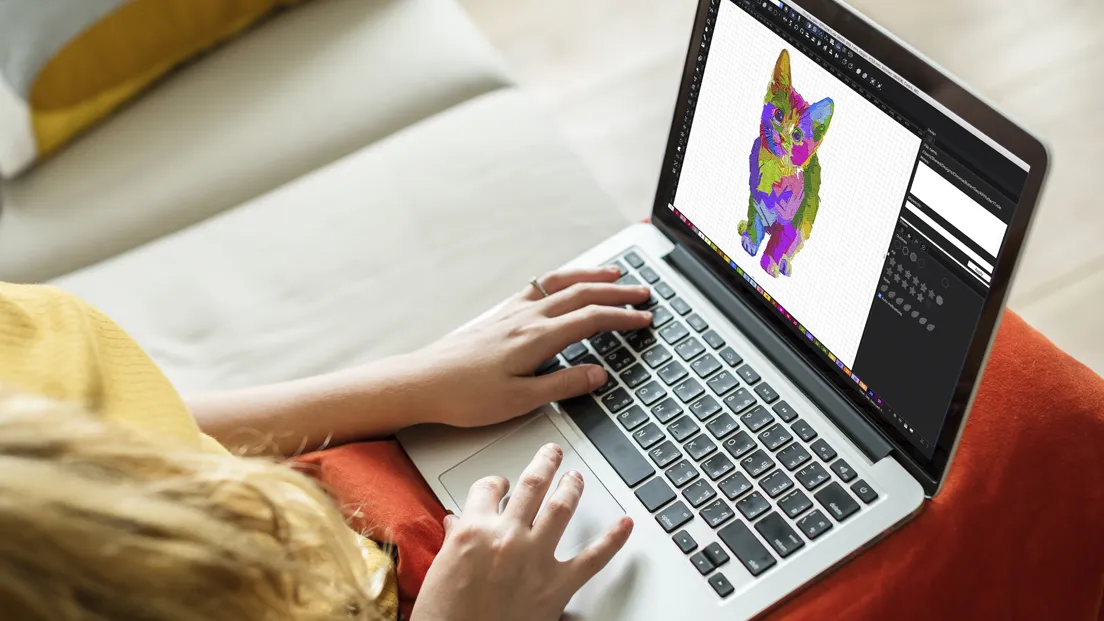
You open your digitizing software, import a logo, and hit the auto-convert button. The software spits out a file. You send it to your machine. The result looks nothing like your original image. Curves come out jagged. Colors overlap wrong. Small details vanish into a thread blob. That frustration happens when you skip the professional approach to image to JAN embroidery file conversion. Professional digitizers do not just push a button. They use techniques that turn your flat image into a smart, editable embroidery file that sews cleanly every time.
Let me walk you through what makes JAN files different from other embroidery formats and how professional digitizing techniques get you better results.
What Makes a JAN File Different
Most people think all embroidery files work the same way. They do not. The JAN format sits in a special category called object-based files . Think of a JAN file like a recipe book instead of a finished dish. It does not just list stitches. It stores descriptions of each piece of your design .
When you work with a JAN file, you keep your design in an editable state. Each part of your logo sits in its own slot. The circle has a slot. The text has another slot. The background fill has another. You can change the color of the text without touching the circle. You can resize the whole design and the software knows how to adjust stitch densities automatically .
This matters more than you might think. With stitch-based files like DST or PES, every single stitch gets locked in place. Want to change the text color? You have to re-digitize the whole thing. Want to make the design bigger? The stitches just stretch out and look terrible. JAN files avoid all that because they store instructions, not just finished stitches .
The Two Types of Embroidery Files You Need to Know
Professional digitizers think about file formats in layers. You have object files and you have stitch files. They serve completely different purposes.
Object files like JAN, ART, and native EMB contain a complete set of design information. That includes object outlines, properties, stitches, thread colors, thumbnail images, and comments . These are Grade A files in professional software. They give you 100 percent perfect scaling and transformation. Shrink a JAN file from four inches to one inch and the software recalculates every stitch density to match the new size.
Stitch files like JEF, PES, and DST only contain machine instructions. Coordinates to move the hoop. Commands for every single stitch in the design . Once you save as a stitch file, you lose the object information. You cannot edit individual pieces anymore. The design becomes one big block of stitch data.
Here is the workflow professionals use. Keep your work in JAN format while you design, edit, and tweak. Save often as JAN. Only export to JEF or another stitch format when you are absolutely finished and ready to sew .
Professional Digitizing Techniques for Better Results
Auto-conversion buttons tempt everyone. You import your image, click a button, and the software guesses how to turn pixels into stitches. Professional digitizers rarely use that button. Here is what they do instead.
Manual tracing comes first. A professional traces every shape in your image using vector tools. The circle gets traced as a circle. The text gets traced as individual letters. The software creates object slots for each traced shape. This takes longer, but it gives you clean edges and proper stitch directions.
Stitch type selection happens shape by shape. Large filled areas get tatami stitches, which look like woven mats and cover space efficiently. Borders and outlines get satin stitches, which create smooth raised edges. Small text gets running stitches, which keep letters readable without crowding .
Professional digitizers also adjust pull compensation before exporting. Thread tension pulls fabric inward as the needle punches. Without compensation, your perfectly round circle comes out looking like an oval. The pro adds extra width on the outside edges, so after the thread pulls, the shape measures exactly right.
Converting Your Image Step by Step
Let me walk you through a real conversion using professional techniques. You have a company logo in BMP format. You want a JAN file you can edit later and a JEF file to send to the machine.
Open your digitizing software. Janome Digitizer MBX works best for JAN files since Janome created the format . Import your BMP image through the File menu. The image appears on your workspace as a template.
Now trace every shape manually. Use the digitizing tools to draw outlines around each part of your logo. The outer circle gets traced as a circle object. The text gets traced using the lettering tool, not freehand drawing. Each letter becomes its own object. Set the correct stitch type for each traced shape.
Assign thread colors to each object. The software shows you a thread chart. Pick actual thread brand colors, not just generic red and blue. Match as close as possible to what you own.
Save your work as a JAN file immediately. This preserves all your object data. You can close the software, reopen later, and pick up right where you left off.
Before exporting to stitch format, run a simulation. Most professional software shows you a stitch preview. Watch the needle path. Look for long jumps where the thread travels across empty space. Add trim commands at those jumps so the machine cuts the thread instead of dragging it across your fabric.
Finally, export a JEF file for your Janome machine. The machine reads JEF format directly. Some newer Janome machines also read JPX, which includes a background image preview on the screen . That helps you position designs perfectly on your fabric.
Why Professional Conversion Matters for Quality
The auto-convert button exists because software companies know most people want a quick solution. But quick rarely means good when it comes to embroidery.
Auto conversion treats every pixel the same. It does not know that your logo has a thick outline meant to stand proud from the fill. It does not know that your small text needs a running stitch instead of a satin stitch. It just converts everything using the same rules, which gives you mediocre results across the board.
Professional conversion knows the difference. A human looks at your design and makes decisions. This curve needs variable stitch lengths so the outside edge does not pucker. This fill area needs a lower density because you are sewing on performance polo fabric. These letters need to enlarge by one millimeter because they sit below the minimum readable size.
You see the difference immediately on the first test sew. Professional files stitch clean with minimal thread breaks. The design looks crisp and matches your original artwork. Auto-converted files often need multiple test sews, tension adjustments, and sometimes complete re-dos.
When to Use JAN vs When to Use JEF
Keep your design in JAN format during the creative process. You are still tweaking colors. You are still deciding if the text should sit higher or lower. You are not sure about the final size yet. JAN gives you flexibility to make changes without starting over.
Export to JEF only when the design reaches its final state. You have approval from the client. You tested on scrap fabric. You confirmed the colors. Now you save as JEF and copy that file to your USB drive for the machine .
Save both versions. Keep the JAN master file in your archive. If the client comes back six months later wanting a color change, you open the JAN file, change one object property, and export a new JEF. No re-digitizing necessary.
Conclusion
Image to JAN embroidery file conversion separates beginners from professionals. Beginners hit the auto-convert button and accept whatever comes out. Professionals trace manually, select stitch types by shape, and save master JAN files for future edits. The JAN format gives you object-based editing that stitch formats cannot match. Keep your designs in JAN while you work. Export to JEF only at the very end. Use manual digitizing techniques instead of trusting auto conversion. Your embroidery machine will sew cleaner designs. Your clients will notice the difference. And you will stop wasting time re-doing designs that should have worked right the first time.